Blog · Guides · 6 min read
See your Apple Home's history: temperatures, doors and batteries over time
Apple Home shows you right now. Homecast Analytics shows you last night, last week and last month — and answers the questions that come with them.
By Rob Parker
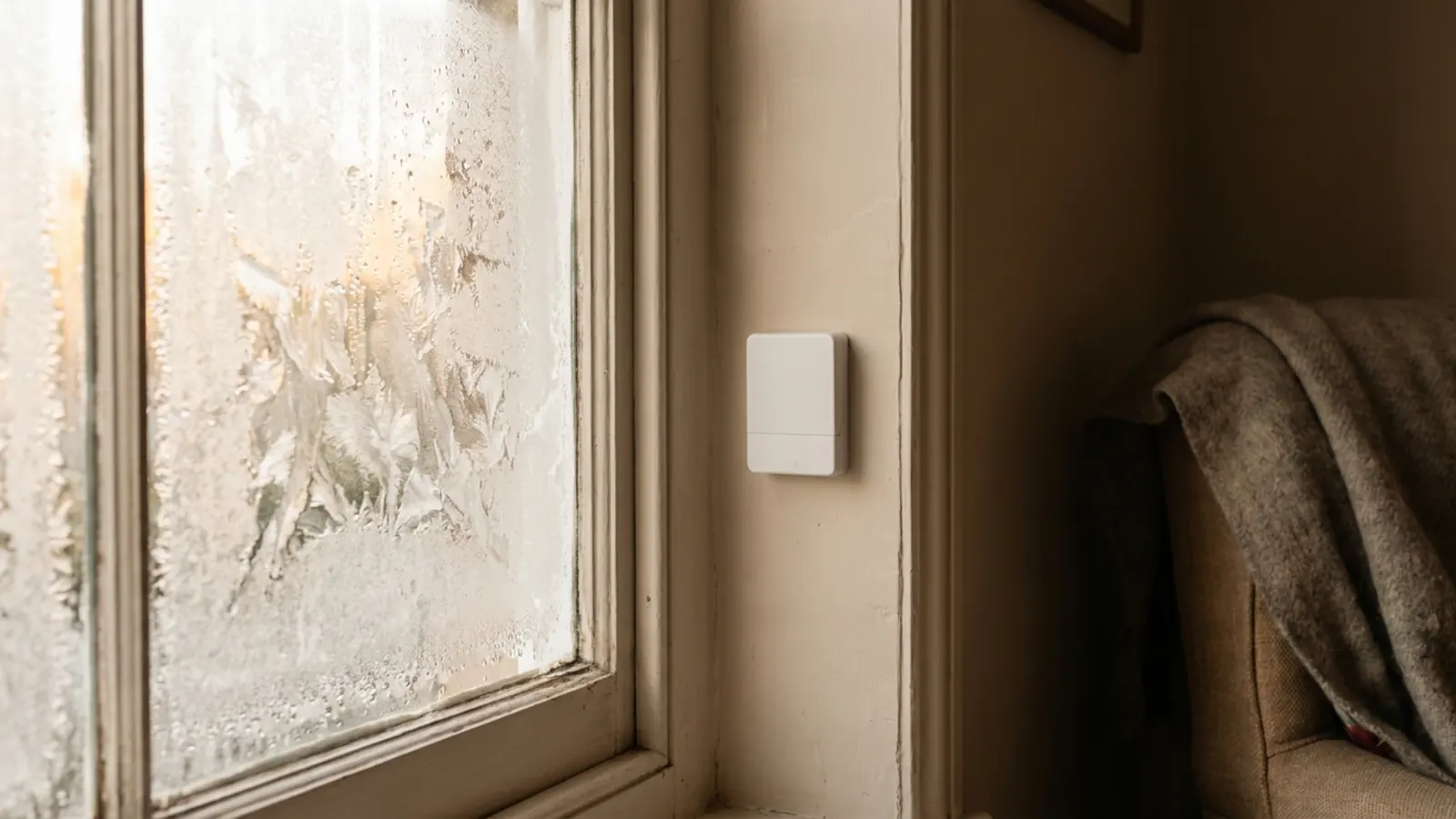
Apple Home is very good at now. It'll tell you the bedroom is 17.4 °C, the back door is closed and the porch light is on. For locks, doors and alarms it keeps a 30-day activity log. But it won't tell you whether the bedroom is always that cold at six in the morning, how the house holds its heat overnight, or which of your sensors is about to run out of battery.
Those are the questions that actually change what you do: bleed a radiator, close a window, order a battery before the motion sensor dies on a dark landing. They all need history of the things Apple Home doesn't keep: temperatures, humidity, lights, batteries.
Homecast does, if you ask it to. Here's how to switch it on, find your way round, and the three questions it answered in my own house in the first ten minutes.
Turn it on
Recording is off until you switch it on, home by home. Open Settings → Homes, choose your home, and turn on Analytics. You'll need to be an admin of the home.
From that moment Homecast records how your accessories change:
- Climate: temperatures, humidity, light levels, CO₂ and air quality, and the targets your thermostats are set to.
- What's on: lights and their brightness, switches, fans, blinds.
- What happened: motion, doors and windows, locks, leaks, smoke.
- Batteries: battery level and low-battery warnings.
- Energy, for plugs that report it, and your virtual accessories.
It records changes, not a reading every second, so a temperature that holds steady all night costs nothing. Accessory names, models, serial numbers and firmware are never recorded.
Where it's kept depends on how you run Homecast. With Homecast Cloud it lives in your account. With the free Community Edition it stays in the Homecast app on your Mac and never leaves your house.
One thing to know up front: there's nothing to import, so recording starts the moment you switch it on. There's no going back to last winter — but by next week you'll have a week.
One accessory at a time
The quickest way in is from the dashboard. Right-click any tile and choose Analytics — or on a phone or iPad, tap the tile to open it and tap Analytics there. You get that accessory's recent history, with ranges from six hours up to everything it has, and an Open in Analytics link when you want more room.
The whole house
For the big picture, open the ⋯ menu at the top right of the dashboard and choose Analytics. It's organised the way your home is: a tree down the left of your home, its rooms and the accessories in each.
- The home shows one line per room for each measure, so you can see at a glance which room runs warm and which runs damp.
- A room stacks a panel for every measure it has — temperature, humidity, light, power and so on — then a Lighting panel (how many lights were on, and when) and an Activity timeline of motion, doors and locks.
- An accessory shows everything that one accessory recorded.
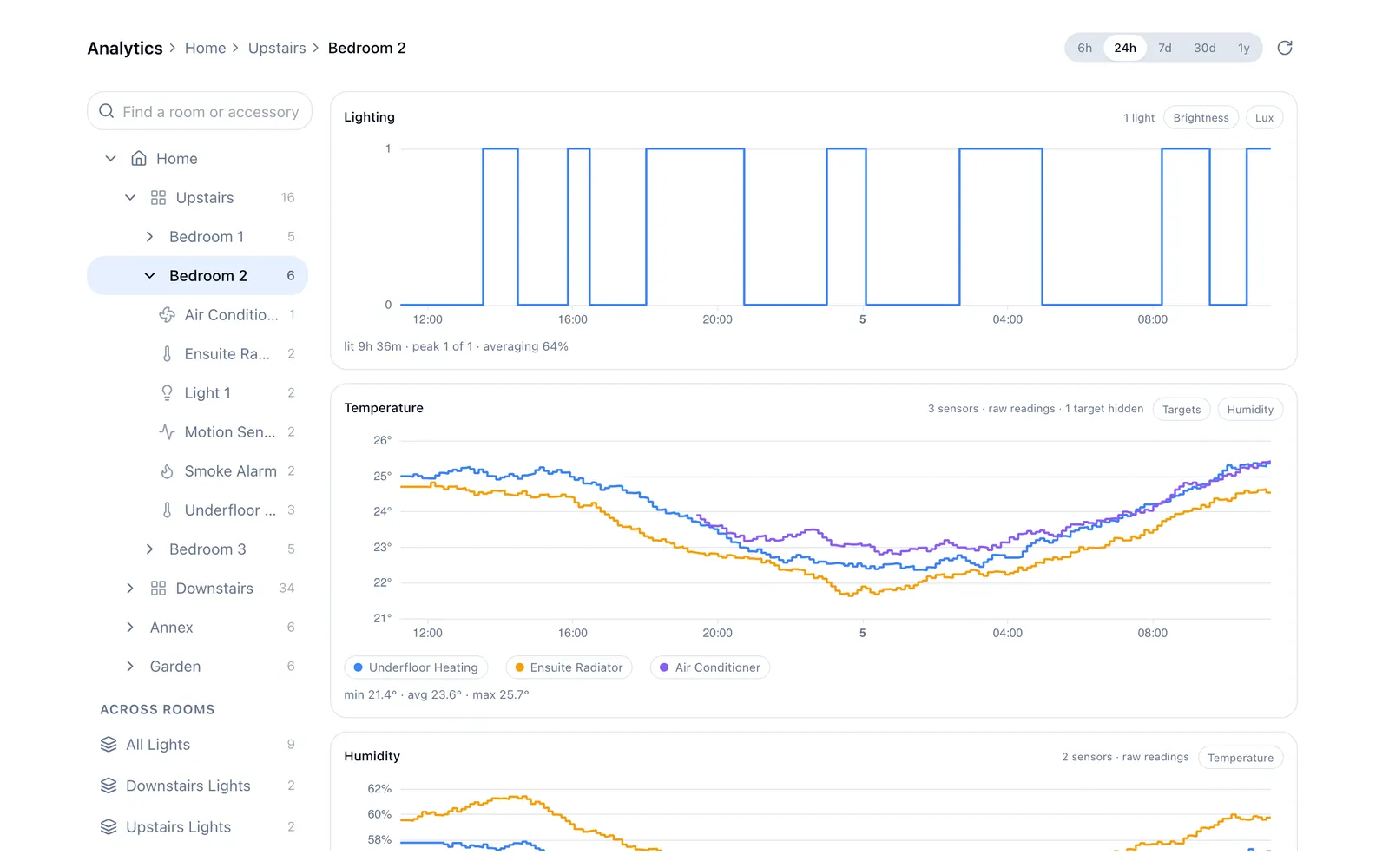
Pick a range from six hours to a year along the top. Hovering over one chart puts a crosshair on every chart in the stack, so you can see that the temperature dropped at the same moment the window opened. Click a line to pin it, and use Targets to overlay what the thermostat was asking for against what the room actually did.
The URL follows you as you move, so a view you want to come back to — the kitchen, last 30 days — is just a bookmark.
Three questions my house answered
Which room is coldest first thing?
I picked the home, temperature, and the last seven days. One line sat below all the others in the early morning: Bedroom 1, at 16.1 °C at 6am on Saturday, nearly 2 °C colder than the next-coldest room. The surprise was the week before, when the same room had been sitting between 19 °C and 23 °C at that hour. From Friday its overnight temperature started falling a couple of degrees further than it used to. Something changed on Friday, and now I know which room to look at.
How often does the front door open?
In a room's Activity timeline, every opening of a door or window is a block on its strip, and a lock in the same room gets a strip of its own. Lining them up is a good way to spot the window that's open long after the heating came on, or the door that's opened far more often than you'd guess.
A word of caution from experience: count the openings, but be wary of reading too much into how long something was open. A sensor that misses a "closed" message will look open until it next reports in.
Which battery dies next?
Every battery-powered accessory records its level, so the Battery panel is a to-do list in waiting. Mine had a motion sensor in Bedroom 2 at 7%, down from 18% a month earlier — which, at that rate, is weeks rather than months. Two more were under 15%.
Some accessories report battery levels that don't mean much — stuck at 0% while working perfectly, or jumping about from day to day. That's the accessory, not the chart; trust the ones that decline steadily.
Ask in plain English
If you've connected Homecast to Claude or ChatGPT, your assistant can read the same history. "Which room was coldest at 6am every day this week?" or "Which of my sensors have the lowest batteries?" gets you an answer without opening a chart at all.
Sharing, exporting and deleting
- Share it. Turn on Analytics on shared links in the same settings section, and anyone you've sent a share link to can see the history of exactly what that link covers — nothing else. It's off by default.
- Export it. Export CSV downloads everything for the home: one row per change, ready for a spreadsheet.
- Delete it. Delete data… removes all of a home's recorded history. Turning Analytics off stops recording but keeps what's there.
History is kept until you delete it. The one exception is the Community Edition, which starts clearing the oldest raw readings if they ever take up more than 500 MB on your Mac, keeping the hourly and daily summaries.
Before you start
- It needs your relay to see your accessories. If an accessory is unreachable, Homecast can't record it, and the gap will show.
- Sensors report on their own schedule. A battery sensor might only send a temperature when it changes by a degree, so lines can look stepped — that's the sensor, not a missing reading.
- There's no plan gate. Analytics works the same on the free Community Edition and on every Cloud plan.
For the full list of what's recorded and how, see the Analytics guide in the docs.