Blog · Guides · 5 min read
How to control your Apple Home from Claude and ChatGPT
Connect Claude or ChatGPT to your Apple Home in a few minutes, choose exactly what it can touch, and ask your house questions in plain English.
By Rob Parker
Siri can turn the lights off. What it can't do is answer "is anything still on in the kitchen?", "which room was coldest this morning?" or "make me a scene that dims the living room and turns the hallway down to 20%". Those need something that can look at your whole house, think about it, and then act.
Claude and ChatGPT can do exactly that, if they can see your home. Homecast gives them a way in — one you control, home by home, with a clear line between look and touch. Setting it up takes about five minutes, and you don't need to be a developer.
How it works
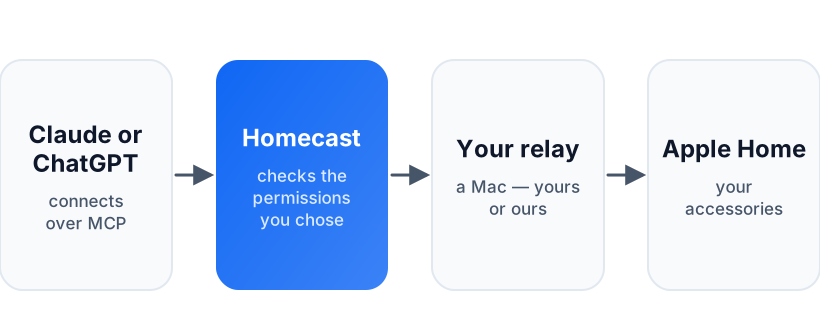
Both assistants support the Model Context Protocol (MCP), an open standard for giving an AI tools to use. Homecast runs an MCP server at:
https://api.homecast.cloud/mcp
When you connect it, your assistant gets a set of Homecast tools: read the state of your accessories, control them, run and build scenes, read and write automations, and look through your history. You sign in with your Homecast account and choose which homes it can see, and whether it can only view them or also control them.
Connect Claude
In Claude — on the web, the desktop app, or the mobile apps:
- Open Customize → Connectors.
- Choose + Add, then Add custom connector.
- Name it Homecast and paste
https://api.homecast.cloud/mcpas the URL. - Choose Add, then sign in with your Homecast account when asked.
Custom connectors work on every Claude plan, including Free (which allows one). On a Team or Enterprise plan, an owner adds the connector once under Organization settings → Connectors, and everyone else just clicks Connect.
To use it, start a chat, open the + menu, choose Connectors and make sure Homecast is switched on.
If you live in a terminal, Claude Code can connect too:
claude mcp add --transport http homecast https://api.homecast.cloud/mcp
Then run /mcp inside Claude Code to sign in.
Connect ChatGPT
ChatGPT connects to MCP servers through developer mode, and this is where I have to be honest: whether you have it depends on your ChatGPT plan, and OpenAI is still changing which plans get it. On my own personal account there's no developer mode switch at all, so I couldn't take these steps myself.
Where it is available, it's on the web, in beta, and the steps in OpenAI's guide are:
- In Settings → Security and login, turn on Developer mode.
- Under Plugins, add a new one: give it the name Homecast, enter
https://api.homecast.cloud/mcpas the connection URL, and choose OAuth for authentication. - Sign in with your Homecast account when asked.
In a chat, choose Developer mode from the + menu and pick Homecast. ChatGPT asks you to confirm before anything that changes your home — that's a feature, not a bug.
Choose what it can touch
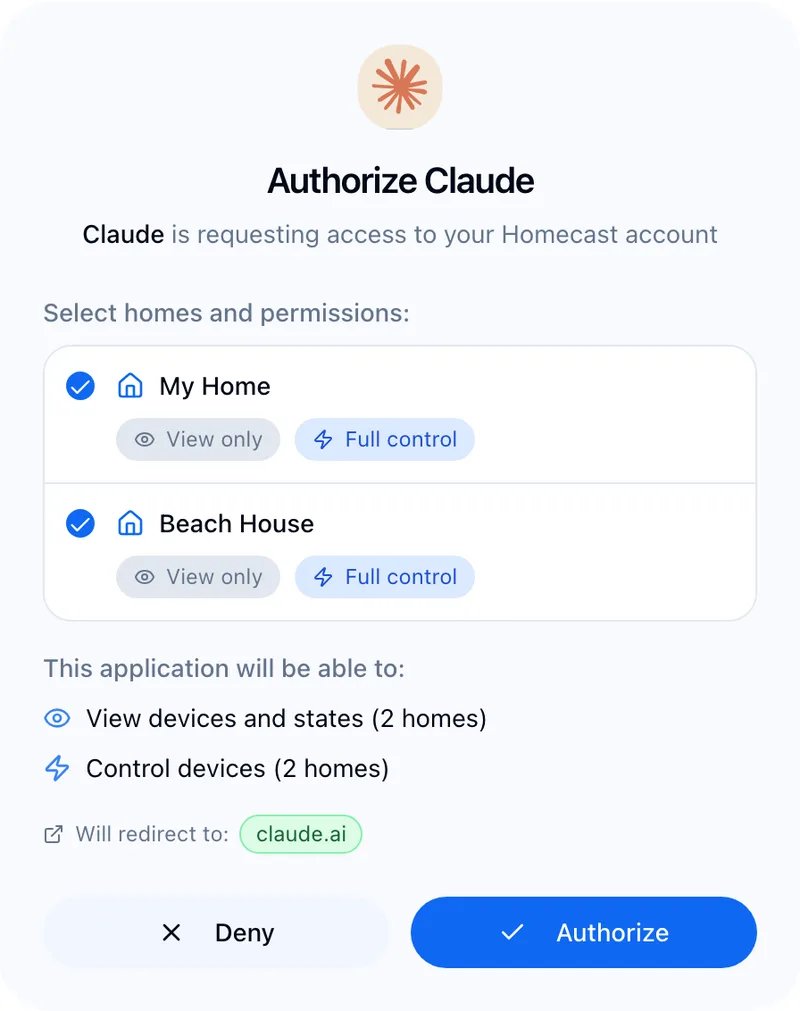
Whichever assistant you use, signing in brings you to a Homecast screen that lists your homes. For each one you choose:
- View only — it can read everything in that home, but can't change anything.
- Full control — it can also turn things on and off, run scenes, and create or edit scenes and automations.
Every home starts ticked with Full control, so take a second here. Untick a home you don't want it to see at all, and choose View only anywhere you just want answers. You can be generous with what it can read and careful with what it can do.
To change your mind later, open Settings → Sharing → Authorized Apps in Homecast. From there you can change an assistant's homes and permissions, or revoke it completely.
Things to ask
The fun part. Some things that work well:
Checks. "Are all the doors locked?" "Is anything still on in the kitchen?" "What's the temperature in each bedroom?" Short, specific questions get short, specific answers.
Control in plain English. "Turn off everything in the kitchen and dining room." "Set the living room to 30% and warm white." The assistant works out which accessories you mean, and you can check what it did in the conversation.
Scenes, written for you. "Make a scene called Film Night: living room lamps at 15%, ceiling lights off, hallway at 10%." It creates a real Apple Home scene, so it appears in the Home app and works with Siri.
Automations, described rather than built. "Every weekday at 7am, if the bedroom is below 18 degrees, turn the heating up." It'll build the automation and tell you what it made.
Questions about the past. If you've turned on Analytics, the assistant can read your history too: "Which room was coldest at 6am every day this week?" "Which sensors have the lowest batteries?" "How many times did the back door open yesterday?"
Getting good answers
- Be specific about where. In a big house, "is anything on?" asks it to read every light you have. "Is anything on in the kitchen?" is faster and more reliable.
- Use the names you use in Apple Home. If you have three things called Front Door — a lock, a sensor and a camera — say which one you mean.
- Check the first few times. Assistants are good at this, but not perfect. Have a look at what it did the first time it builds a scene or an automation.
Without the cloud
If you run the free Community Edition, the same MCP server runs on your Mac at http://your-mac.local:5656/mcp, with the same tools. It's only reachable on your home network, so it suits assistants running on your own computer — Claude Code, for instance — rather than the cloud versions of Claude or ChatGPT.
For the full tool list and the details of authentication, see the MCP reference.