Blog · Guides · 6 min read
Sharing your Apple Home with family members who use Android
How to give the Android phones in your house real access to your Apple Home — their own login, the right permissions, notifications, and links for guests.
By Rob Parker
Apple Home works beautifully until someone in the house has an Android phone. Then it doesn't work at all. There's no Apple Home app for Android, no way to invite a Google account, and the usual workaround — "just ask me to turn it off" — gets old the first time you're asked from upstairs.
This is the problem Homecast was built to solve. Here's how to set a mixed household up properly: everyone with their own login, the right level of access, notifications on the phones that want them, and a sensible answer for the babysitter.
How it fits together
Homecast doesn't add anyone to Apple Home. Your Apple Home stays exactly as it is, with only your Apple ID in it. Homecast's relay — the Homecast app on your Mac, or our hosted relay on the Cloud plan — talks to Apple Home on your behalf, and everyone else talks to Homecast.
That means your family never need an Apple ID, and you decide what each person can do in Homecast, separately from Apple Home's own permissions.
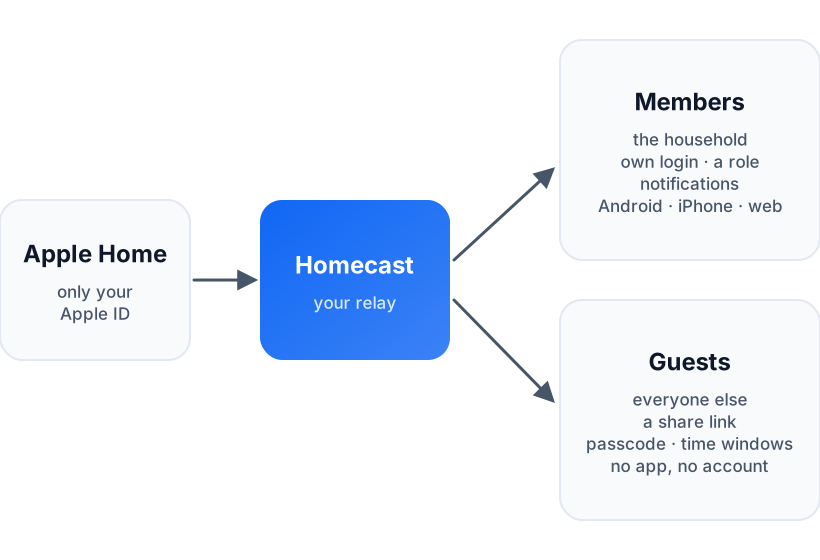
There are two ways to give someone access, and they're for different people:
- Members are the household. They have their own Homecast account, see the home in the app every day, and can get notifications.
- Share links are for everyone else — the babysitter, the cleaner, the friend feeding the cat. No account and no app, just a web page, and you can make it work only at certain times.
Invite the household
Members need a Homecast Cloud account — any plan, including the free one — rather than the Community Edition. Each person you invite gets one of three roles:
| Role | What they can do |
|---|---|
| View | See every accessory and its state, but change nothing. |
| Control | Turn things on and off, run scenes, and create and edit scenes and automations. |
| Admin | Everything Control can do, plus invite and remove people and create share links. |
Control is what most of a family wants, and it's the default. View suits a teenager who should be able to check whether the back door is locked without being able to unlock it.
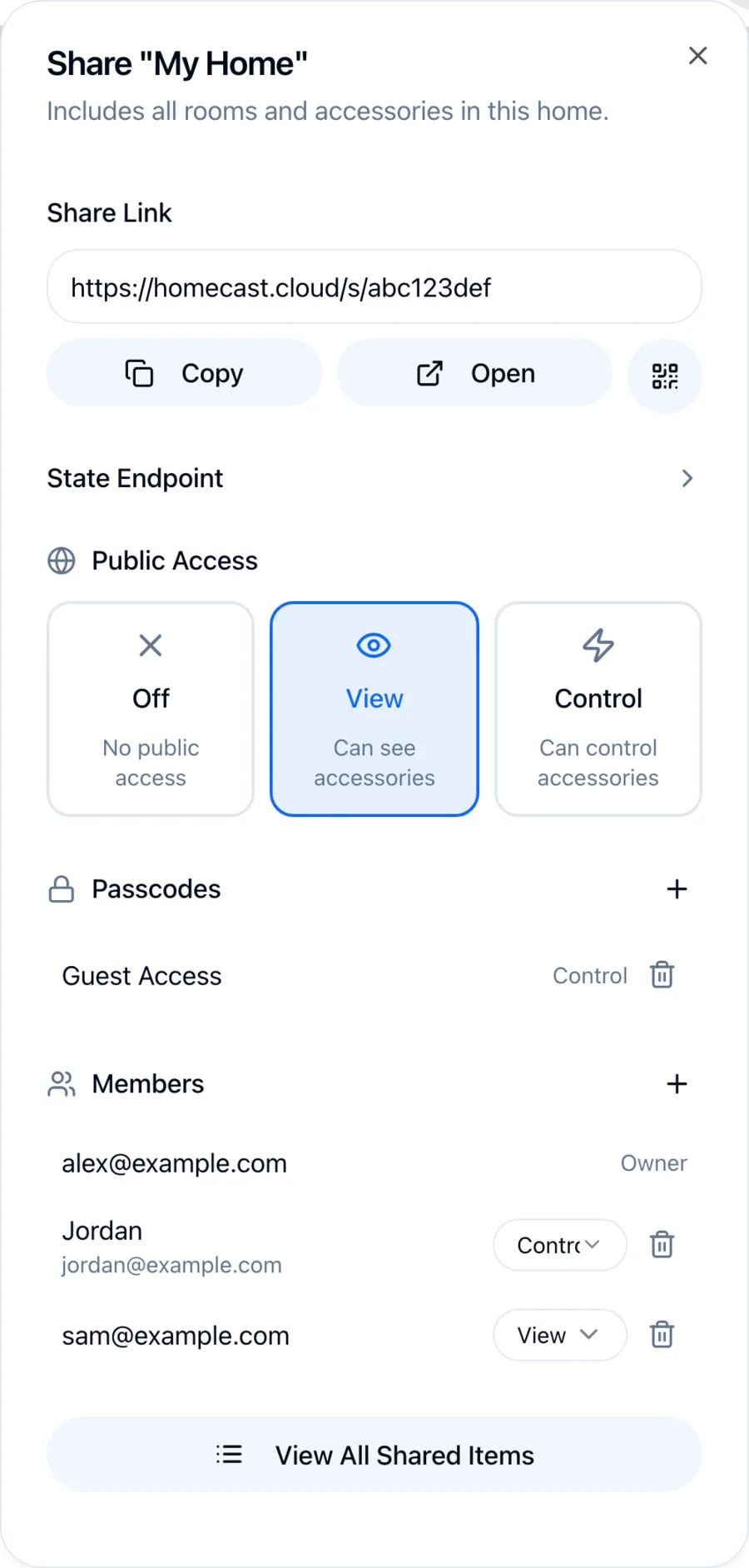
To invite someone on a Mac or in a browser, right-click your home in the sidebar and choose Share Home. On a phone, select the home, tap ⋯ at the top right and choose Share. Either way you'll see a Members section with a + button. Enter their email address, pick a role and tap Invite.
They'll get an email saying you've invited them to your home on Homecast, with a button to sign up.
What they do on their Android phone
- Install Homecast from Google Play.
- Choose Homecast Cloud when it asks how to connect.
- Sign up with the same email address you invited — that's how Homecast matches them to the invitation — and verify it from the email that follows.
- Accept the invitation when it appears.
The home then shows up in their app just as it does in yours.
One honest note for right now: Homecast Cloud is opening up from a waitlist, and new accounts — including invited ones — currently wait for approval before they can get in. If your partner signs up and sees "You're on the waiting list", that's why, and there's nothing they've done wrong.
Members don't need a subscription of their own — only the account running the relay does. Everyone sees what your plan includes, so if you're on the free plan, the whole family shares the same ten accessories you picked.
Notifications on Android
Homecast notifications come from your automations: any automation with a Notify step sends a push to you and to every member who's accepted their invitation. "The garage door's been open for ten minutes", "Back door unlocked", "Washing's done" — they arrive on Android phones and iPhones alike.
For an Android phone to receive them, the app needs to be signed in and allowed to send notifications. To check, open Settings → Notifications on that phone and tap Send Test.
Every phone can choose what it hears, without affecting anyone else:
- Settings → Notifications → Notifications on this phone turns everything off on that device.
- Settings → Homes → your home → Notifications turns off a whole home or one automation, on that device only.
So the person who doesn't want "Washing's done" at work can mute it, and everyone else still gets it.
Guests: share links
For people who aren't part of the household, use a share link instead of an invitation. In the same Share dialog you'll find the link for that home, and two ways to open it up:
- Public Access — Off, View or Control for anyone who has the link.
- Passcodes — the link only works with a code you choose, each passcode with its own access level.
You can share a whole home, or just a room or a single accessory. The guest opens the link in any browser: no app, no account, no Apple ID.
A passcode can also have Limited Access: a start date, an end date, and weekly time windows. So the cleaner's code works on Tuesdays from 9 till 1; the dog-sitter's works from Friday to Sunday and then stops on its own.
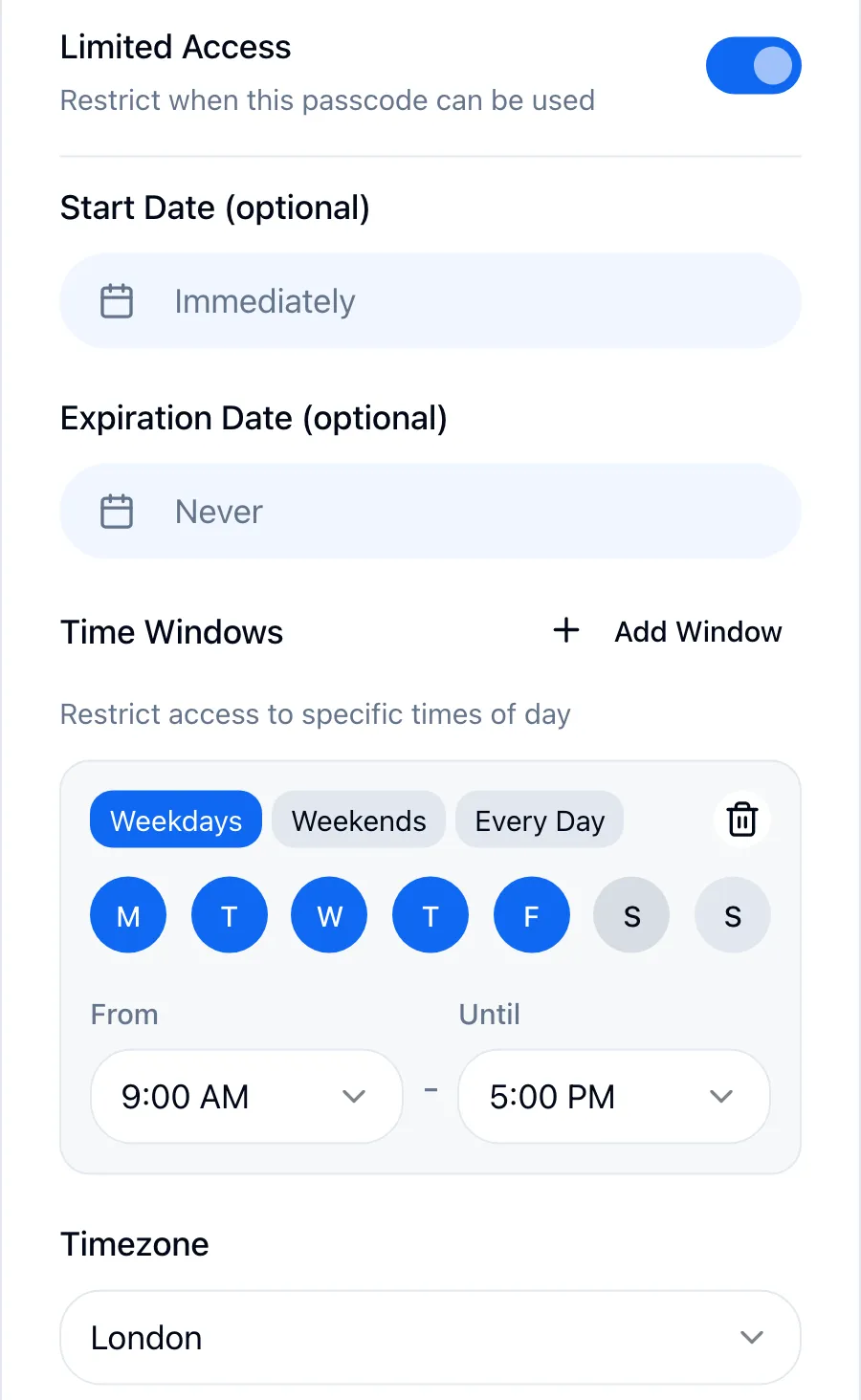
Two things to know about time windows:
- They can't cross midnight. A window from 10pm to 6am won't work as one window. Make it two: 10pm to 11:30pm, and midnight to 6am.
- Outside its window, a passcode is simply refused with the same message as a wrong passcode. Tell your guest when it works, so they don't think you gave them the wrong one.
To take access away, set Public Access to Off or delete the passcode. It stops working immediately.
Things worth knowing
- The relay has to be running. If your relay is the Homecast app on your Mac, the family can only reach the house while that Mac is awake and online. On the Cloud plan we run the relay for you; your home just needs an Apple TV or HomePod, as it does for Apple Home's own remote access.
- iPhones have a fallback; Android doesn't. An iPhone that's also in your Apple Home can control the house directly if the relay is down. Android phones always go through the relay.
- Members can't remove themselves from a home. If someone moves out, an admin removes them from the Members list.
If you're just starting out, the mobile app guide covers the Android app itself, and Sharing has the full reference for roles and links.