Blog · News · 3 min read
What's new in Homecast: scenes in rooms, long-press to edit and more
Scenes in the rooms they control, long press to rearrange on touch, a home for automations, Analytics on share links, and a support page.
By Rob Parker
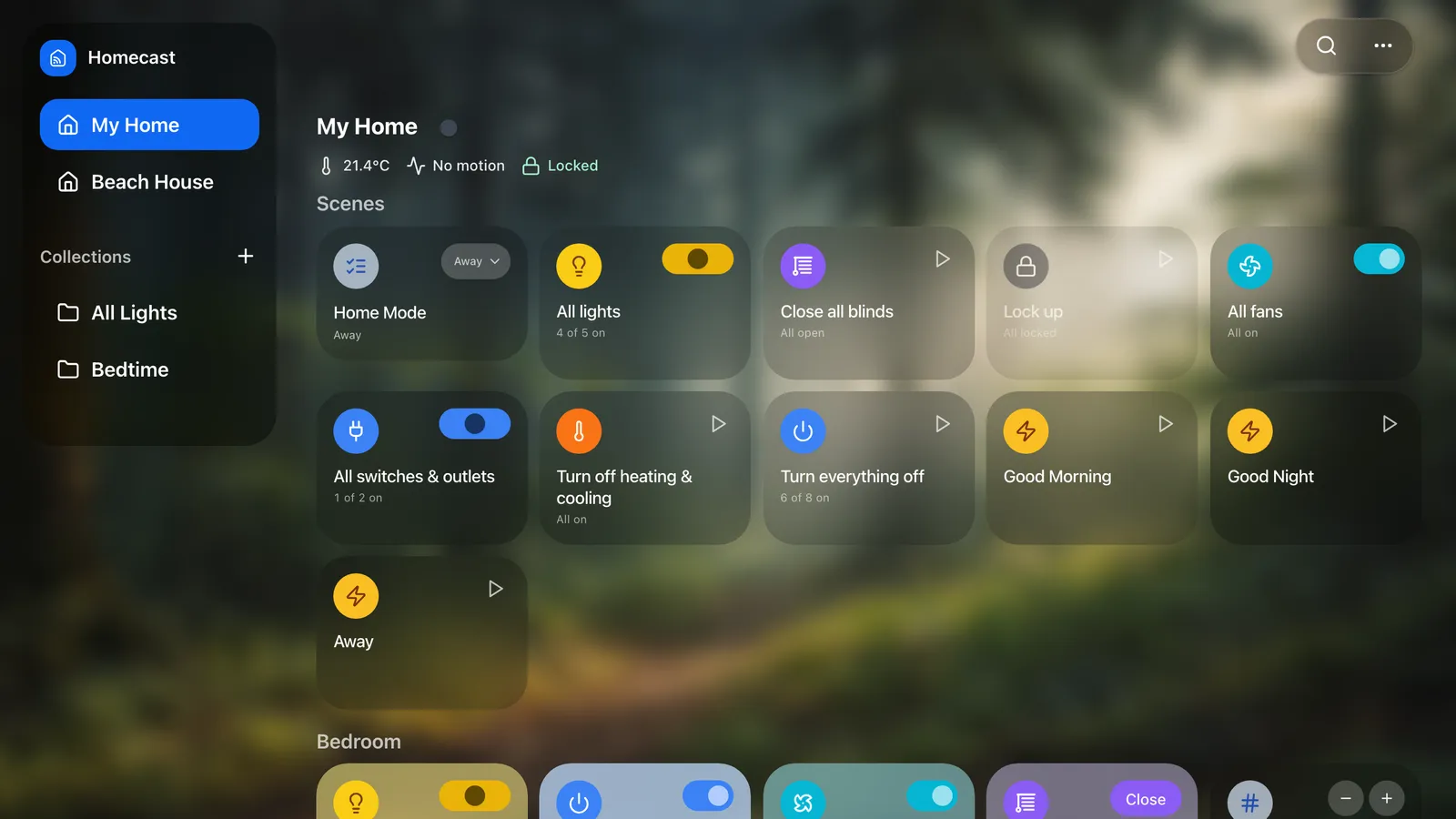
Most of what we ship goes out quietly — a change to the dashboard reaches every Homecast app, on every platform, the next time it opens. That's great for getting fixes to you quickly, and terrible for telling you anything happened. So here's a catch-up on the last six weeks or so.
Scenes live in their rooms
A scene that controls one room — Bedroom: Reading, Kitchen: Cooking — now sits in that room's grid, next to the lights it changes, instead of in a list at the top of the home. Scenes that span several rooms, or the whole house, stay in the home's Scenes section.
If Homecast puts a scene somewhere you don't want it, open the scene and use Show in to choose a room, or Scenes (home) to keep it at the top. It only changes where the card appears in Homecast; nothing changes in Apple Home. You can also drag scenes around a room in Edit Layout, mixed in with the accessories.
Long press to edit, on phones and tablets
On a touch screen, press and hold anything on the dashboard — a tile, a group, a scene, a room in the menu, a tab in the tab bar — and you're straight into Edit Layout with that item already picked up. Drag it where you want it and let go. Hold an empty bit of the dashboard to start editing without picking anything up.
It's the gesture your phone's home screen taught you, and it replaces right-click menus on touch, which never really belonged there. What used to be in a tile's menu is in its expanded panel now: tap the tile to open it. With a mouse — on the Mac, in a browser, on Windows — nothing has changed, and right-click still works as before.
Automations, in their own place
Automations used to share space on the dashboard with everything else. Now they're in the menu at the top right: choose Automations to see your Apple Home and Homecast automations together in one place. Drag them into whatever order makes sense to you, and hide the ones you don't need to see. On a phone, hide one from Edit Layout; on a computer, right-click it. To bring one back, enter Edit Layout on a phone, or choose Show Hidden Items from the same menu on a computer.
Analytics on share links
If you record Analytics for a home, you can now let people with a share link see the history of what that link shares — the temperature in a holiday let you're managing, say, or the energy use of the plug you've shared with whoever pays that bill. It's a separate switch, Analytics on shared links, under Settings → Homes → your home → Analytics, and it's off until you turn it on.
A link shows the history of exactly what it shares, and nothing else. It can't export or delete anything, and if the link stops working, so does its Analytics.
A proper support page
There's now a Support page with how to reach us, what to include when you do, and how subscriptions and refunds work whether you subscribed through the App Store or on the web. And you can now delete your Homecast account from inside the app, under Settings → Account.
And some smaller things
- The status badge tells you how you're connected. Tap it to see the route to your home, how reliable it's been, and what to do if something's wrong.
- Your own Mac as a standby. On the Cloud plan, if Homecast is also running on a Mac of yours, it waits as a Standby and takes over if our relay ever goes away.
- When something doesn't answer, Homecast says which accessory, and offers to try it again.
- Hide rooms and accessories separately from the home view and from a room's own view.
- Faster wallpapers. The built-in backgrounds are about a tenth of the size they were, and tiles pick a readable colour against whatever's behind them.
- The MQTT browser draws air conditioners and blinds the way the app does, and has a switch to show or hide groups.
As always, if something isn't working the way you'd expect, tell us.